URP/HDRP Conversion Guide
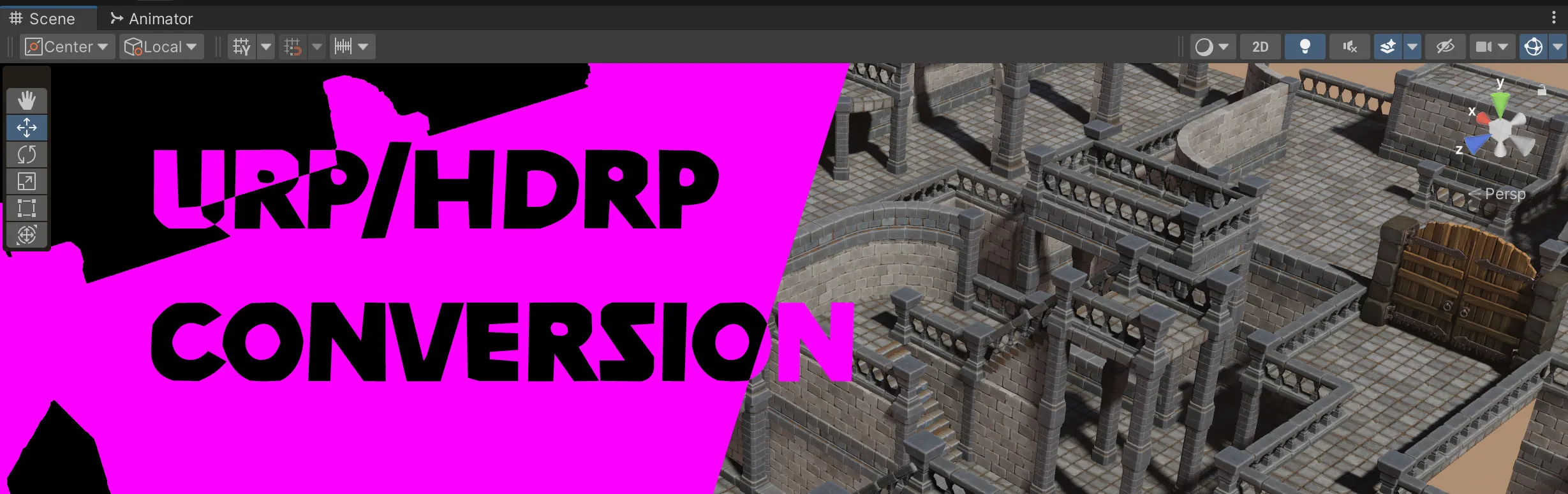
Unity's Built-in Render Pipeline materials can be converted to the Universal Render Pipeline (URP) or the High Definition Render Pipeline (HDRP).
- MaxKill Studios assets may require manual material conversion, or simply applying a provided Unity package. Check the asset's documentation or store page to confirm which method applies.
- This guide covers manual conversion for assets using the Standard shader only. If the asset includes custom shaders or pre-configured URP/HDRP materials, follow the asset-specific instructions instead.
Material conversion is irreversible. Back up your project before proceeding.
Before You Begin
- Confirm your project is set up with URP or HDRP. The target render pipeline's package must be installed and assigned in Project Settings > Graphics.
- The conversion only affects materials using Unity's Standard or Standard (Specular Setup) shader. Custom shaders are not converted automatically.
Method 1: Convert via Edit Menu
Select the materials you want to convert and use the Edit menu. Best for converting a small number of specific materials.
Converting to URP
-
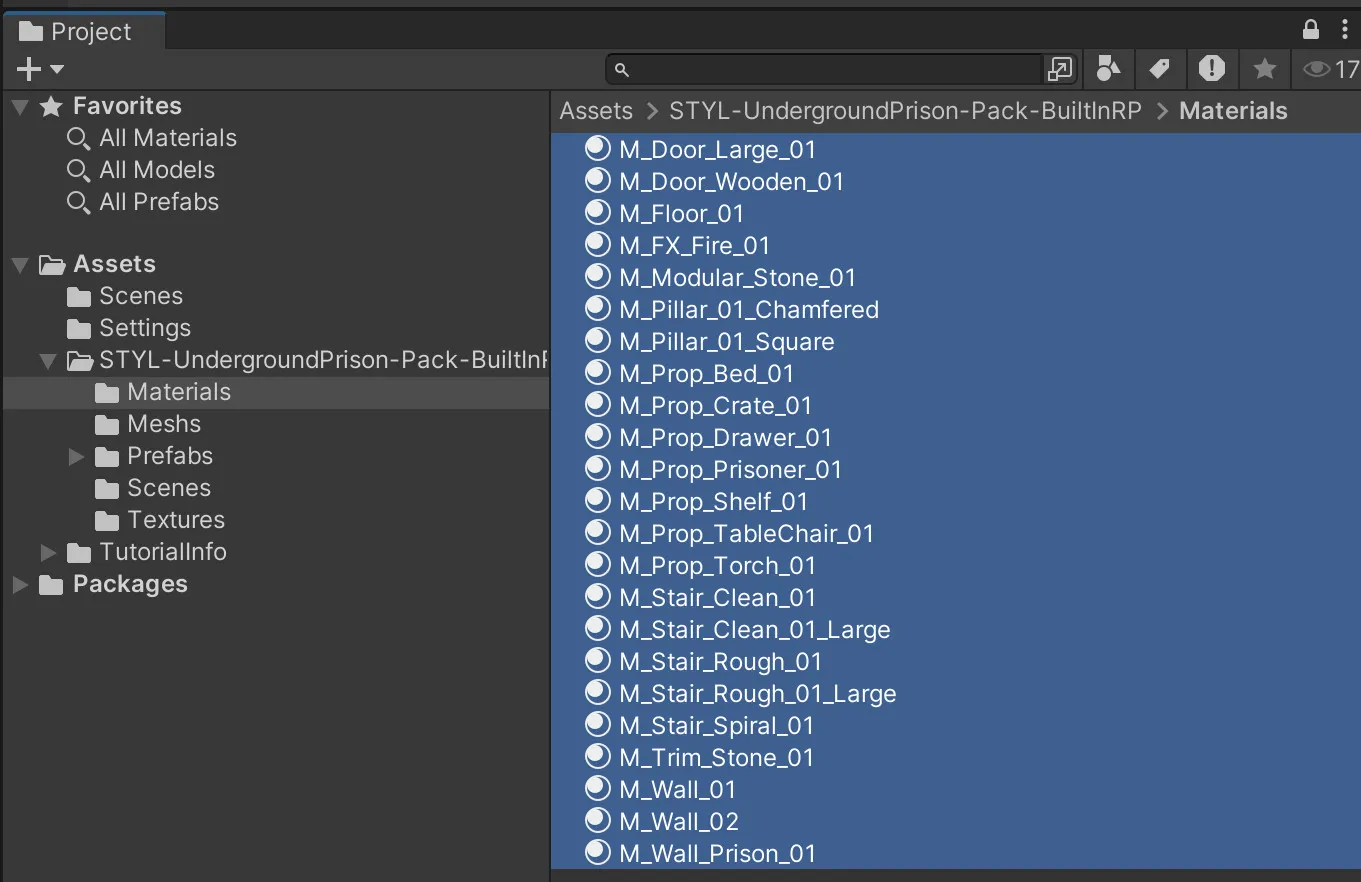
Select all materials from the asset in your Project window.
-
Go to
Edit > Rendering > Materials > Convert Selected Built-in Materials to URP.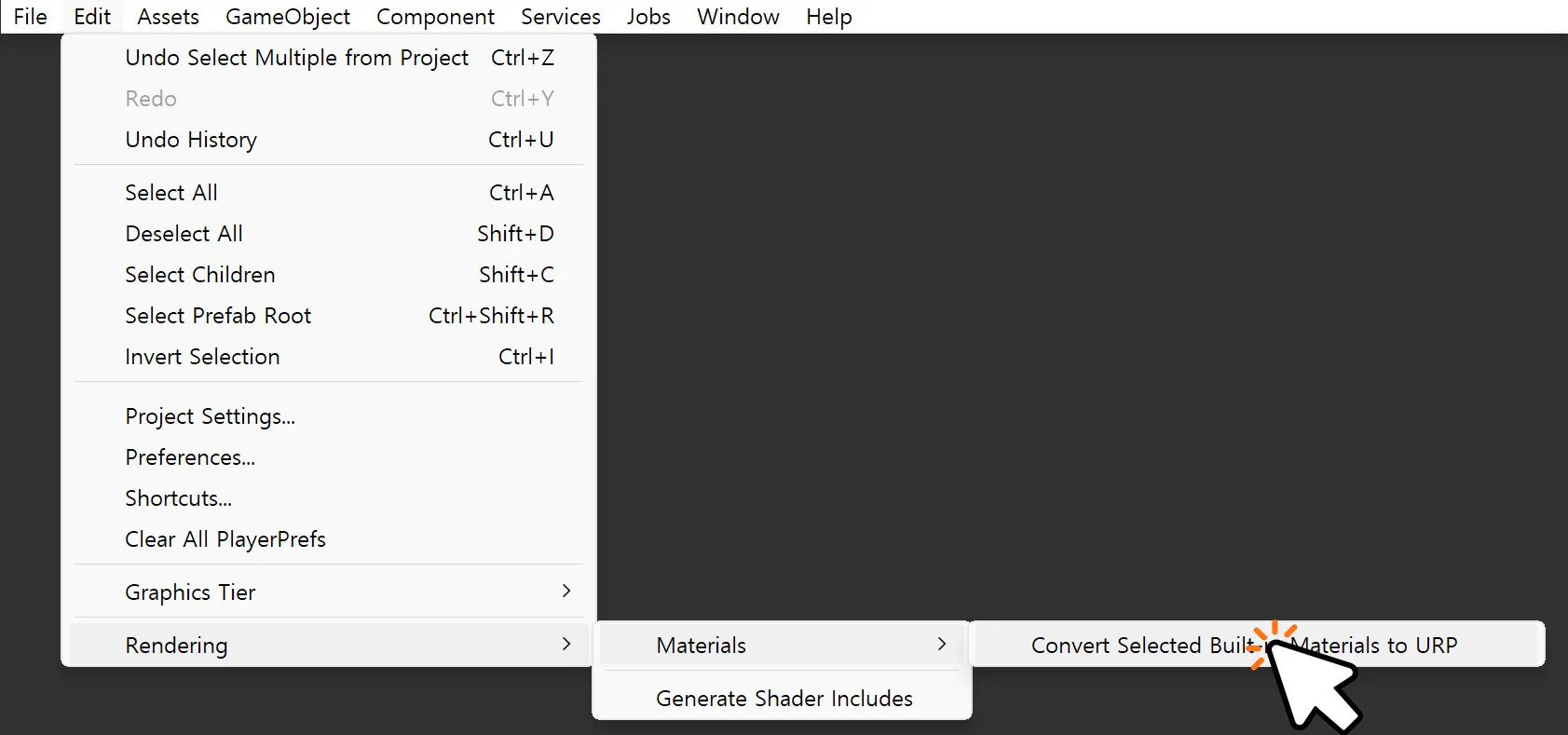
-
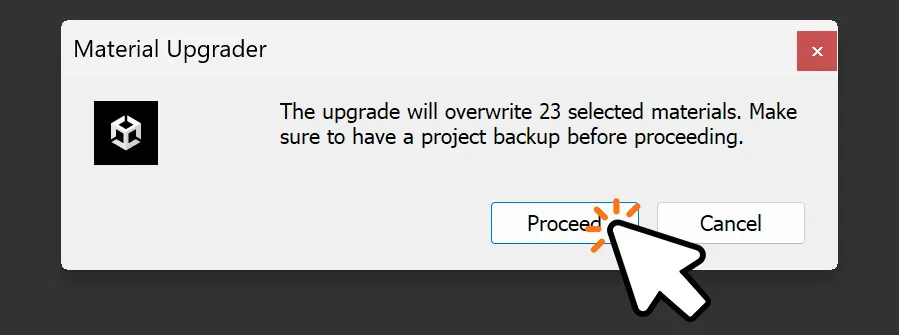
In the Material Upgrader dialog, click Proceed.
-
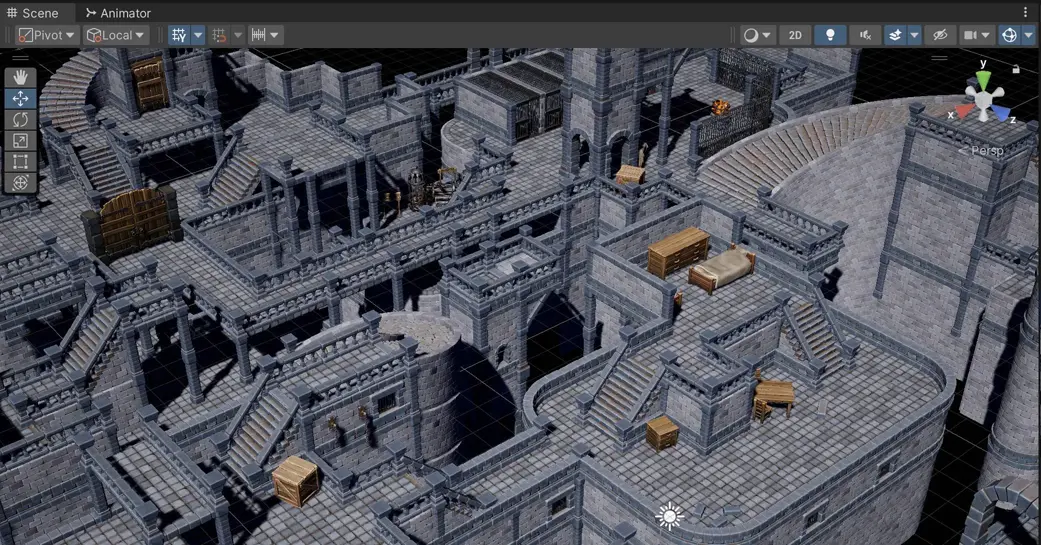
Verify that materials display correctly in the scene. If any materials appear pink, see Troubleshooting.
Converting to HDRP
-
Select all materials from the asset in your Project window.
-
Go to
Edit > Rendering > Materials > Convert Selected Built-in Materials to HDRP.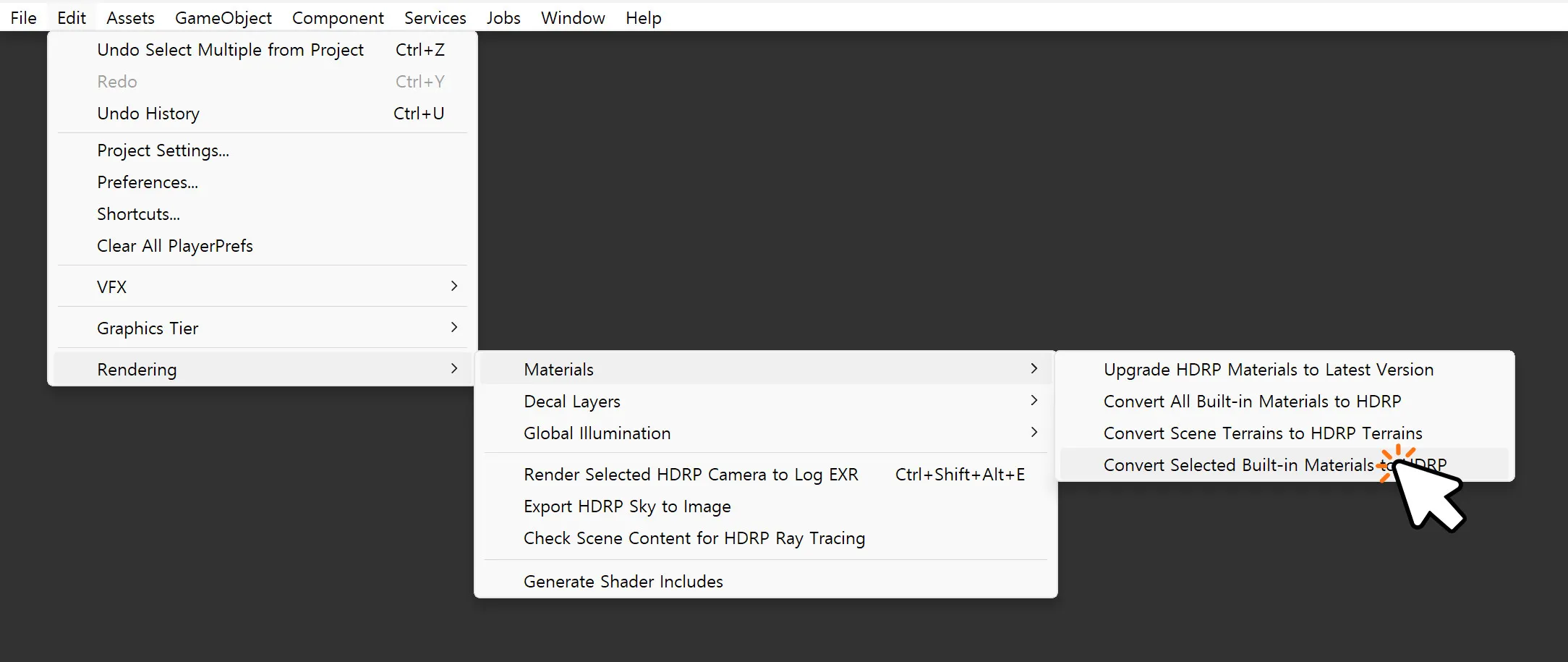
-
In the Material Upgrader dialog, click Proceed.
-
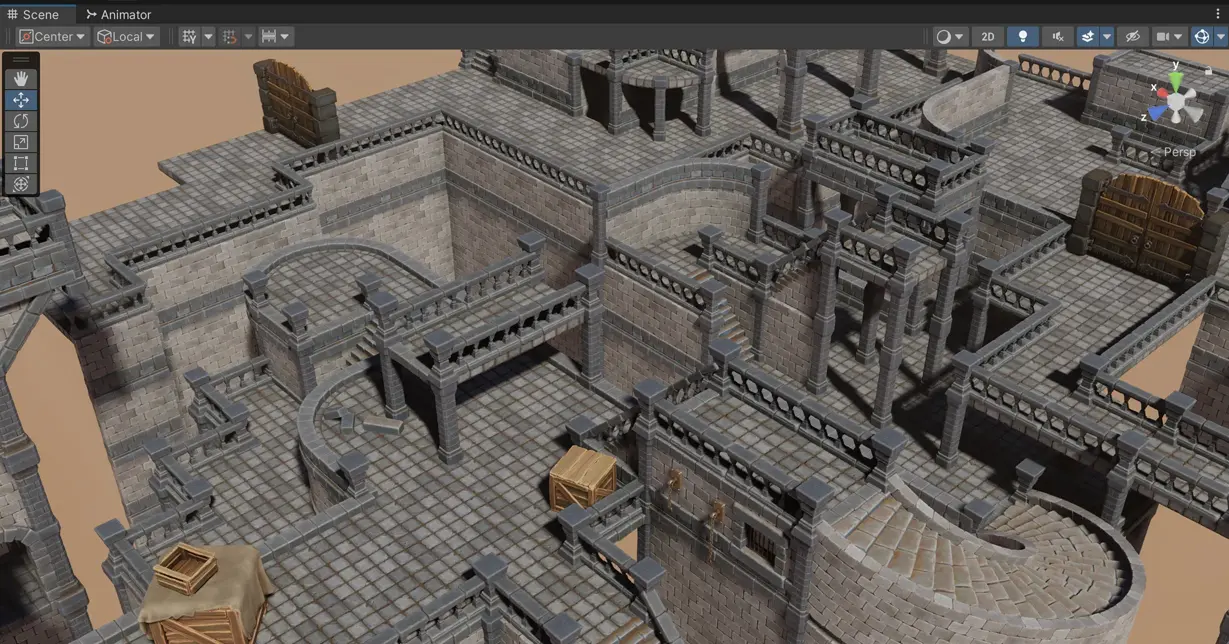
Verify that materials display correctly in the scene. If any materials appear pink, see Troubleshooting.
Method 2: Render Pipeline Converter (URP)
Unity provides a dedicated converter window for URP projects. This method lets you scan and review all convertible assets before applying changes.
- Go to
Window > Rendering > Render Pipeline Converter. - Select Built-in Render Pipeline to URP from the dropdown.
- Check Material Upgrade (and optionally Read-only Material Converter for built-in default materials).
- Click Initialize Converters to scan your project.
- Review the list of assets that will be converted.
- Click Convert Assets.
The Render Pipeline Converter is useful for large projects where you want to review what will be changed before converting. For a small number of materials, Method 1 is faster.
The Render Pipeline Converter window is available for URP only. For HDRP conversion, use Method 1 (Edit menu).
Troubleshooting
Pink or magenta materials after conversion
Materials turn pink when their shader is incompatible with the current render pipeline. This usually happens for one of these reasons.
- The material was not included in the conversion selection.
- The material uses a custom shader that the converter cannot handle.
- The render pipeline package is not properly installed or assigned.
Check the pink material's shader assignment in the Inspector, then re-run the conversion or manually assign a compatible shader (Universal Render Pipeline/Lit for URP, HDRP/Lit for HDRP).
Textures look different or missing
Shader properties may not map 1:1 between pipelines. After conversion, check the following.
- Normal maps, metallic maps, and emission maps are still assigned.
- Smoothness and metallic values may need adjustment if the surface appearance changed.
Custom shaders not converted
The built-in converter only handles Standard and Standard (Specular Setup) shaders. Custom shaders and Surface Shaders must be manually rewritten or recreated in Shader Graph.
Shader Mapping Reference
After conversion, Built-in shaders are remapped to their pipeline equivalents:
| Built-in Shader | URP Equivalent |
|---|---|
| Standard | Universal Render Pipeline/Lit |
| Standard (Specular Setup) | Universal Render Pipeline/Lit |
| Mobile/Diffuse | Universal Render Pipeline/Simple Lit |
| Particles/Standard Surface | Universal Render Pipeline/Particles/Lit |
| Built-in Shader | HDRP Equivalent |
|---|---|
| Standard | HDRP/Lit |
| Standard (Specular Setup) | HDRP/Lit |
Unity Version Notes
| Unity Version | Method 1 (Edit Menu) | Method 2 (Converter) |
|---|---|---|
| Unity 2022, Unity 6 (6000.x) | Available | Available (URP only) |
The Edit menu path may change between Unity versions. If Edit > Rendering > Materials is not available, use Method 2 or check your Unity version's documentation.